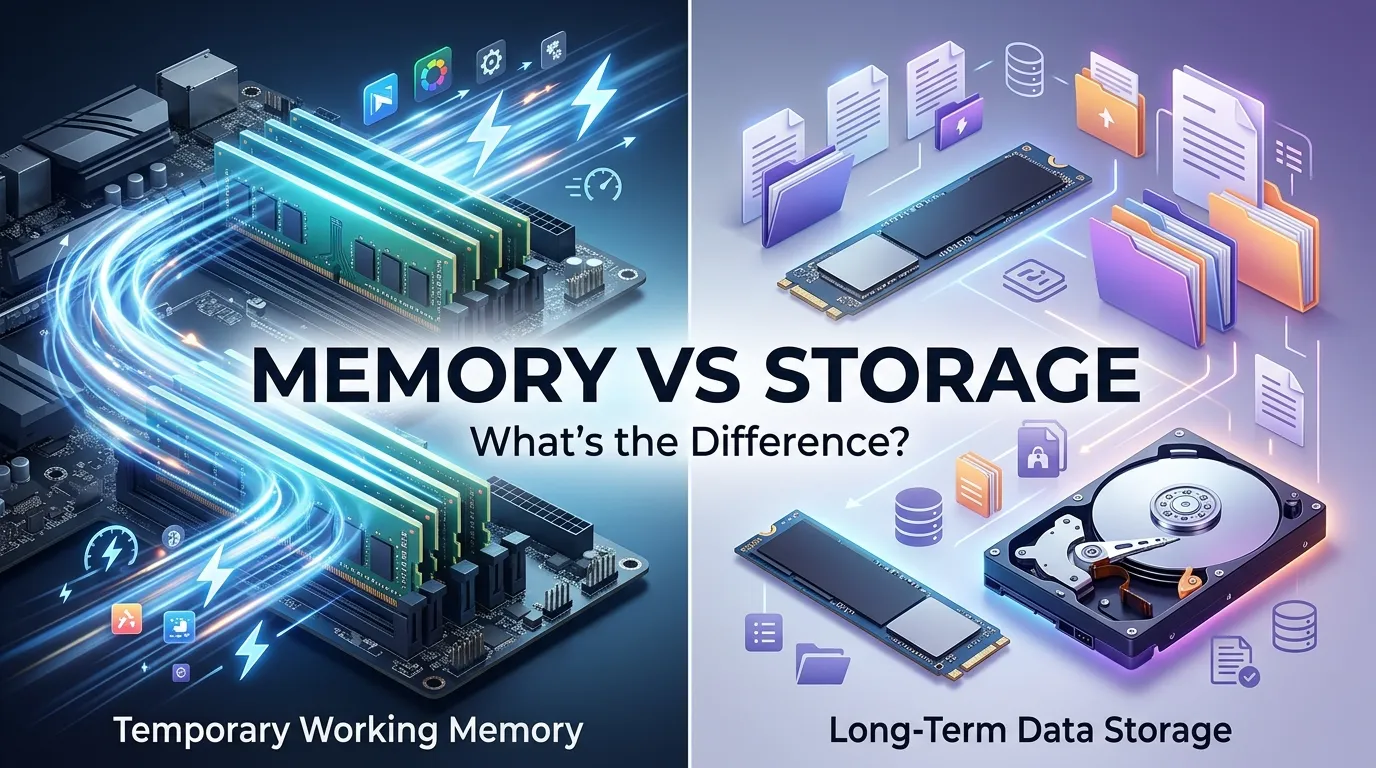
Memory vs storage refers to two different jobs in a computer. Memory, usually RAM, temporarily holds the data and programs your CPU is actively using.
Storage, usually an SSD or HDD, keeps your operating system, applications, documents, photos, and other files for the long term.
RAM is faster, while storage provides much more capacity and retains data when the computer is turned off.
Key Takeaways
- Memory usually means RAM, which provides temporary working space for active tasks.
- Storage usually means an SSD or HDD, which keeps your files and software long term.
- RAM is much faster than storage, but storage normally offers far more capacity.
- More RAM can improve multitasking, while more storage gives you room for additional files and programs.
- An SSD is storage, not RAM, although it is generally faster than a traditional HDD.
What Is the Difference Between Memory and Storage?
The easiest way to understand memory vs storage is to imagine your computer as a workspace.
RAM is your desk. It holds the documents and tools you are actively using so you can reach them quickly.
Storage is your filing cabinet. It keeps your documents, programs, photos, videos, and other information until you need them again.
When you open an application, your computer loads the data it needs from storage into RAM. The CPU can then work with that information much more quickly. When you shut down the computer, the information held in RAM disappears, while files saved on your SSD or HDD remain.
This is why a computer can have 16GB of RAM and 1TB of storage without those numbers representing the same thing. They describe different resources.
Memory Means RAM in Most PC Specifications
In everyday computer specifications, memory usually means RAM (Random Access Memory).
RAM is temporary, high-speed working memory. It holds information that the processor needs while applications are running. Intel describes RAM as high-speed, short-term memory for the CPU.
Storage Means SSD or HDD
Storage normally refers to a device that retains information after the computer is turned off.
Common examples include:
- Solid-state drives (SSDs)
- Hard disk drives (HDDs)
- External hard drives
- USB storage
- Memory cards
Modern computers commonly use SSDs for internal storage, while HDDs remain useful where large capacity and lower cost are important.
Memory vs Storage at a Glance
| Feature | Memory (RAM) | Storage (SSD/HDD) |
| Main purpose | Holds active data | Stores files and software |
| Data retention | Temporary | Long term |
| Keeps data after shutdown? | No | Yes |
| Speed | Very fast | Slower than RAM |
| Typical capacity | Measured in GB | Usually hundreds of GB or TB |
| Used for | Running programs and multitasking | OS, apps, photos, videos, documents |
| Common examples | DDR4, DDR5 RAM | SSD, HDD |
| Main limitation | Limited working space | Limited file capacity |
The exact performance depends on the hardware, but the basic distinction remains: RAM is optimized for active work, while storage is optimized for retaining data.
What Is Computer Memory?
Computer memory, in the usual consumer-PC sense, is RAM.
When you launch a browser, open a spreadsheet, edit a photo, or play a game, the computer needs quick access to the data involved. RAM provides that temporary workspace.
How RAM Works
Suppose you open a web browser with several tabs.
The browser and the information needed to operate those tabs are loaded into memory. The CPU can access that working information quickly instead of repeatedly retrieving everything from the storage drive.
This is one reason RAM affects multitasking and responsiveness. A system with insufficient RAM may struggle when many applications or demanding workloads are active. Microsoft similarly describes RAM as computer memory that affects speed and performance.
What Happens When RAM Runs Out?
RAM has a limited capacity. When active workloads need more memory than is comfortably available, the operating system can use storage as part of its memory-management process. Because storage is slower than RAM, heavy reliance on it can contribute to reduced responsiveness.
This does not mean an SSD or HDD is a replacement for physical RAM. They serve different purposes.
What Is Computer Storage?
Computer storage is where your operating system, applications, documents, photos, videos, games, and other saved information reside.
Unlike RAM, storage is designed to retain information without continuous power. That makes it suitable for keeping data between sessions.
SSD Storage
An SSD (solid-state drive) uses flash-based storage and has no spinning mechanical platters.
SSDs are generally much faster and more responsive than traditional HDDs. Faster storage can improve tasks such as booting the operating system, opening applications, and transferring files.
HDD Storage
An HDD (hard disk drive) stores information on spinning magnetic disks.
HDDs are generally slower than SSDs, but they can still provide large amounts of storage. They are commonly used for bulk storage, backups, and other situations where capacity matters.
Memory vs Storage: Key Differences
Speed
RAM is designed for extremely fast access by the processor. Storage is slower, although modern SSDs are substantially faster than traditional HDDs.
This difference matters because active programs need rapid access to working data. Intel notes that RAM is faster than long-term disk storage and is used for the data applications currently need.
Capacity
Storage generally provides much more space than RAM.
A computer might have 16GB of RAM and 1TB of storage. One terabyte provides substantially more capacity for files and applications, while the smaller RAM capacity is sufficient because only the information currently needed has to be immediately available.
Data Retention
This is one of the simplest ways to distinguish the two.
RAM: Data is temporary and normally disappears when the system loses power.
Storage: Data remains saved when the computer is turned off.
That distinction is why you save a document to your SSD rather than relying on RAM to preserve it.
Effect on Performance
RAM and storage can both affect how a computer feels, but in different ways.
If you frequently run out of available RAM, multitasking can become difficult. If your computer has a slow HDD, booting and loading applications can take longer.
Microsoft’s current PC guidance likewise separates the two: RAM is associated with speed and multitasking, while higher storage capacity is useful for keeping more photos, videos, and documents.
Which Matters More: RAM or Storage?
There is no universal answer because they solve different problems.
If your computer runs out of working memory, adding RAM may help with multitasking and demanding applications.
If you run out of disk space, adding storage gives you room for more files, games, photos, videos, and applications.
If the computer uses an old HDD and feels slow when booting or launching programs, moving to an SSD can also make a noticeable difference.
A useful rule is:
- Need smoother multitasking? Look at RAM.
- Need more room for files? Look at storage.
- Need faster boot and application loading? Look at your storage type and speed.
How Much RAM and Storage Do You Need?
Your ideal configuration depends on what you do.
For everyday activities such as web browsing, email, office work, and streaming, a moderate amount of RAM may be sufficient. Microsoft currently lists 8GB as suitable for light browsing and many everyday tasks, while noting that photo/video editing and gaming may call for around 16GB or more.
Storage needs are different.
A person who mostly uses web-based applications and cloud storage may need less local storage. Someone who keeps large game libraries, videos, photographs, or creative projects locally may need substantially more.
Instead of choosing RAM and storage based only on the biggest number, consider how you actually use the computer.
What Should You Upgrade: RAM or Storage?
Start by identifying the problem.
Choose a RAM upgrade when:
- Applications struggle during multitasking.
- You frequently have many demanding programs open.
- Your system regularly approaches its available memory limit.
- Memory-intensive software is part of your normal workflow.
Choose more storage when:
- Your drive is nearly full.
- You need space for games, videos, photos, or applications.
- You want to keep more files locally.
- You need additional capacity for backups.
Consider an SSD upgrade when:
- Your computer still uses an older HDD.
- Boot times are slow.
- Applications take a long time to load.
- File access feels sluggish.
The important point is that more storage does not automatically compensate for insufficient RAM, and more RAM does not create additional space for your files.
Common Memory and Storage Mistakes
One common mistake is saying a computer has “1TB of memory” when the specification actually refers to 1TB of storage. In consumer PC specifications, memory generally means RAM, while storage refers to the SSD or HDD.
Another mistake is assuming that buying a computer with more storage automatically makes it faster. A larger drive gives you more space, but capacity and speed are separate characteristics.
Finally, don’t assume that an SSD and RAM are interchangeable. Both use digital data, but they occupy different roles in the computer’s memory hierarchy.
FAQs:
Is RAM the same as storage?
No. RAM is temporary working memory used by the CPU and active applications. Storage, such as an SSD or HDD, keeps files and software for the long term. RAM is faster but normally has less capacity, while storage is slower but provides much more space.
Does more RAM make a computer faster?
More RAM can improve performance when your current amount is insufficient for your workload. It can help with multitasking and memory-intensive applications. However, adding RAM does not automatically make every computer faster if RAM was not the limiting factor.
Does storage affect computer speed?
Yes, storage can affect responsiveness, especially when comparing an HDD with a modern SSD. Storage influences tasks such as booting, launching applications, and reading or writing files. However, storage and RAM affect performance in different ways.
Is an SSD memory or storage?
An SSD is storage. It is a non-volatile storage device designed to retain data when the computer is powered off. It is much faster than a traditional HDD in many workloads, but it is still different from RAM.
What happens when RAM is full?
When available RAM becomes insufficient, the operating system may move some data between RAM and storage as part of memory management. Because storage is slower than RAM, heavy memory pressure can make the system feel less responsive. Adding suitable RAM can help when insufficient memory is the underlying bottleneck.
Conclusion:
Understanding memory vs storage becomes much easier when you remember one simple distinction: RAM is the computer’s temporary workspace, while storage is its long-term filing system.
RAM helps your CPU work with active programs and data quickly. Storage keeps your operating system, applications, and personal files available after shutdown.
An SSD can make a computer feel more responsive than an HDD, while additional RAM can help when your workload exceeds the available working memory.
So, when choosing or upgrading a computer, don’t ask only how many gigabytes it has. Ask how many gigabytes are RAM and how many are storage and which one is actually limiting your use?